
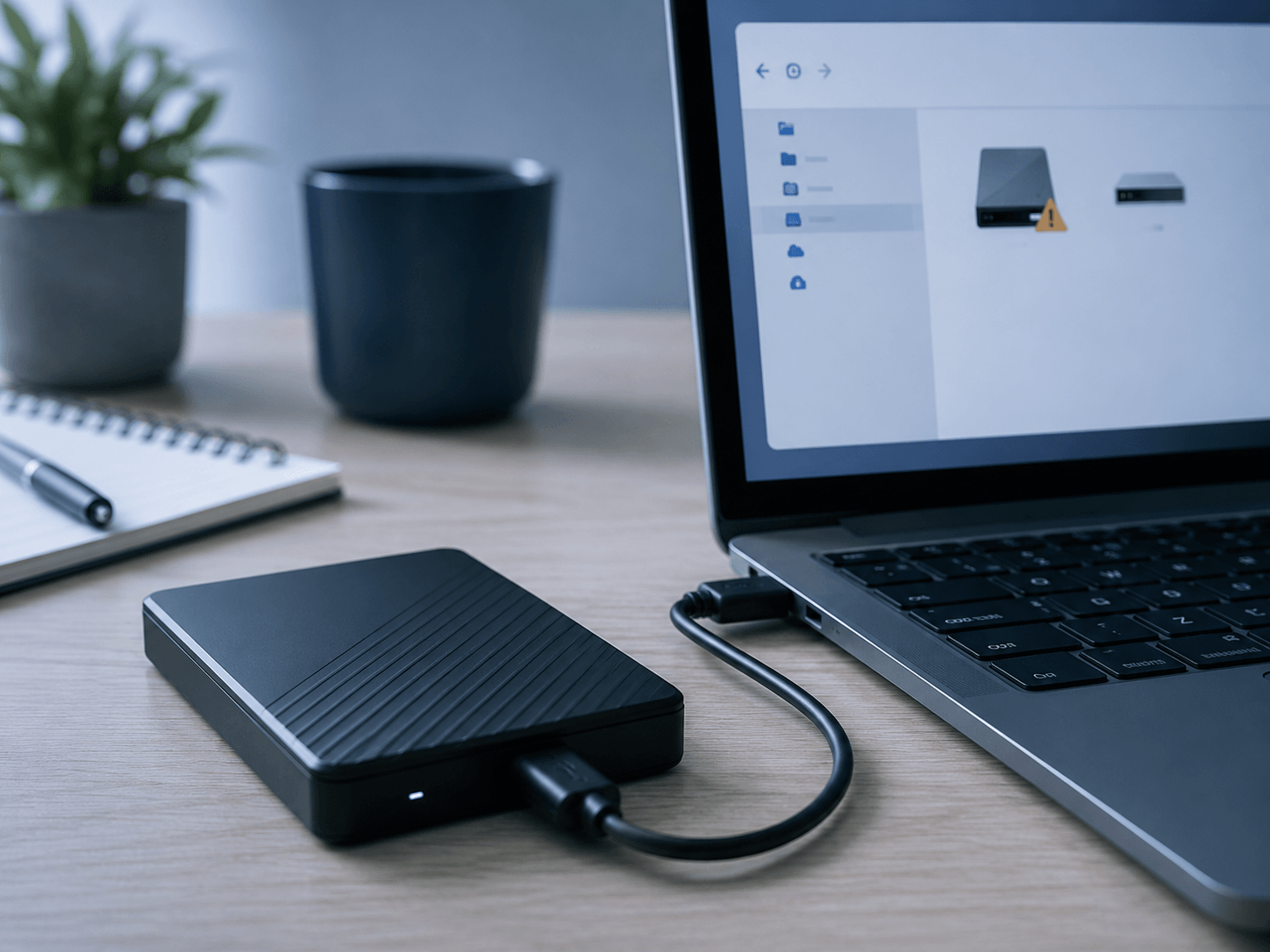
External Hard Drive Not Detected? First Steps To Protect Your Files
External Hard Drive Not Detected? First Steps To Protect Your Files
If your drive is not showing up, asking to be formatted, clicking, or disconnecting, the first steps can help protect your files.
An external hard drive can fail at the worst possible time. One day it works normally. The next day, Windows or macOS does not recognize it.
The drive may not appear at all. It may ask to be formatted. It may show as RAW, unallocated, unknown, not initialized, or inaccessible. It may disconnect repeatedly. It may also make clicking, beeping, or grinding sounds.
When that happens, it is natural to start troubleshooting right away.
You may try a different cable, restart the computer, plug the drive into another USB port, search for recovery software, or open Disk Management to see what Windows reports.
Some basic checks are reasonable. But if the data is important, the main goal should be simple:
Protect the files before anything is changed.
Not detected does not always mean unrecoverable
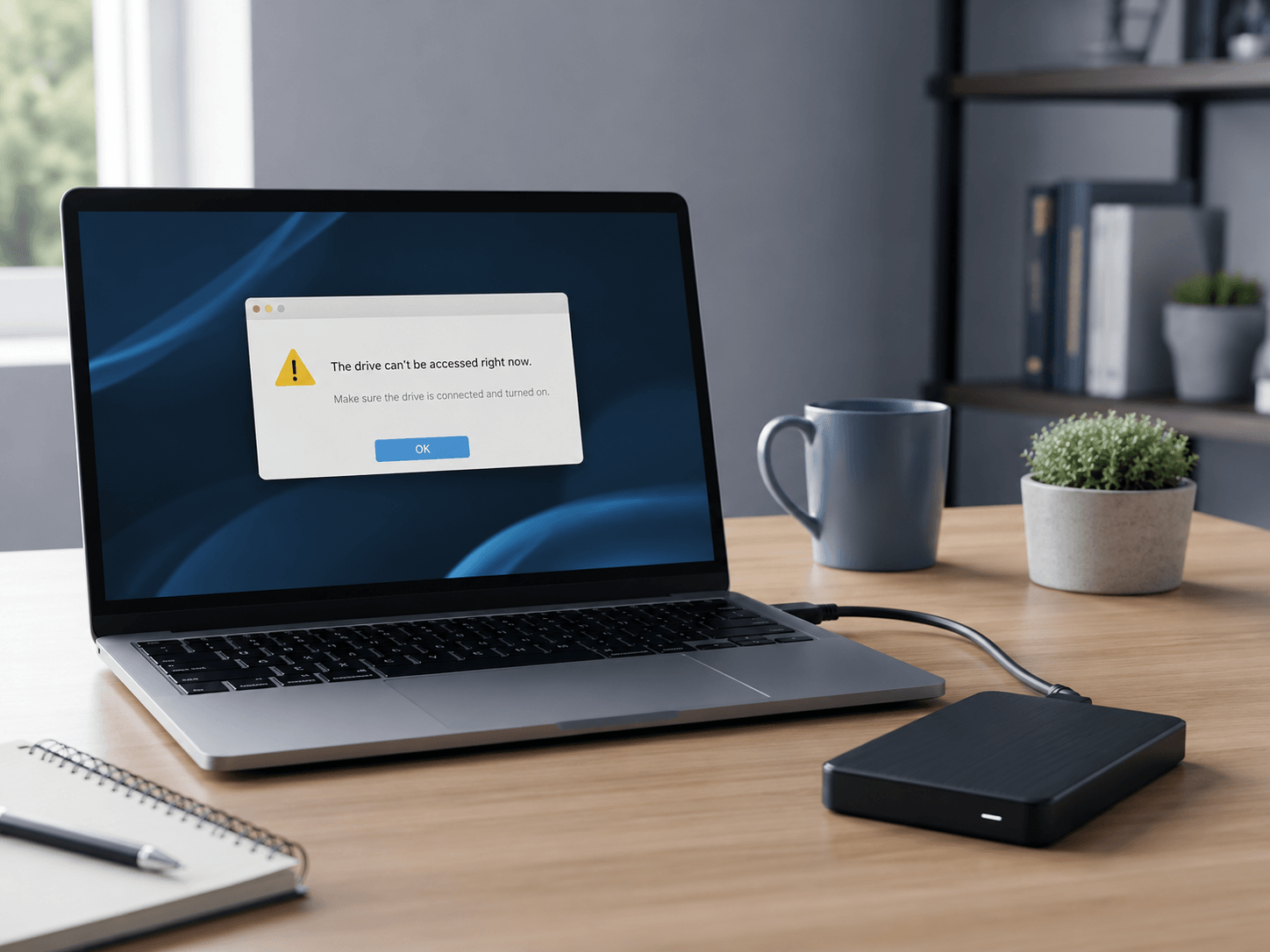
When an external hard drive is not detected, there are several possible causes.
Some are simple. A USB cable may be damaged. A USB port may not provide enough power. The external enclosure may have failed. The drive may need a different adapter. The bad connector caused a short circuit. The computer may see the physical device but fail to mount the volume.
Other causes are more serious. The drive may have bad sectors, firmware problems, damaged heads, stuck heads, file-system corruption, partition damage, a failing USB bridge board, or internal mechanical failure.
That is why “not detected” is only a symptom. It is not a complete diagnosis.
A drive that does not show up in File Explorer or Finder may still be partially visible to the system. On Windows, it may appear in Disk Management as RAW, unallocated, unknown, not initialized, offline, or showing the wrong capacity. On a Mac, it may appear in Disk Utility but fail to mount.
Those details matter because each situation points to a different type of problem.
Common warning signs
External hard drive recovery cases often begin with messages or symptoms like:
- External hard drive not detected
- External hard drive not showing up
- USB drive not recognized
- Drive asking to be formatted
- “You need to format the disk before you can use it”
- Drive shows as RAW
- Disk unknown, not initialized
- Drive shows 0 bytes
- External drive disconnects repeatedly
- Drive appears in Disk Management but not File Explorer
- External drive not mounting on Mac
- Disk Utility cannot repair the drive
- Hard drive clicking
- Hard drive beeping
- Drive spins up then stops
- Drive works slowly or freezes the computer
- I/O device error
- Cyclic redundancy check error
- Parameter is incorrect
- Access is denied
Some of these symptoms can come from logical file-system problems. Others can point to physical drive failure.
The safest approach depends on the condition of the drive and the value of the data.
Formatting is not recovery
If Windows says the drive needs to be formatted, do not format it if you need the data.
If Disk Management says the disk must be initialized, do not initialize it if the drive already contained files.
If a repair tool offers to fix the drive, pause before continuing.
Formatting, initializing, creating a new partition, or running aggressive repair utilities can write new information to the drive. That may change the original file-system structure, overwrite important metadata, or reduce recovery options.
CHKDSK is a common example. It is designed to check and repair file-system problems, and it can be useful on healthy drives in the right situation. But on a failing drive, especially one with bad sectors or mechanical issues, repair attempts can stress the drive and change file-system data before the important files are safely copied.
If your only goal is to recover the files, the priority should be preserving the data, not forcing the drive to appear normal.
Clicking or beeping needs extra caution
A clicking or beeping external hard drive should be treated carefully.
Clicking may indicate that the heads are struggling to read the platters, the drive cannot calibrate properly, or internal components are failing.
Beeping can happen when the motor cannot spin correctly, the heads are stuck, or the drive is not getting enough power. Some portable drives beep when they do not receive enough power from the USB port, but beeping can also indicate mechanical trouble.
If the drive is clicking, beeping, grinding, spinning up and down, or freezing the computer, power it off and avoid repeated testing.
- Do not tap it.
- Do not freeze it.
- Do not open it.
- Do not keep plugging it in to “see if it works this time.”
Hard drives are precision devices. Opening one outside a proper environment can introduce dust and contamination that may make recovery harder or even impossible.
Safe things you can check
There are a few lower-risk checks you can do before assuming the worst.
If the drive is not making unusual sounds and the data is not extremely critical, you can try:
- A different USB cable
- A different USB port
- A direct connection instead of a USB hub
- A different computer
- A powered USB hub for some portable drives
- Checking whether the drive appears in Disk Management on Windows
- Checking whether the drive appears in Disk Utility on Mac
- Noting the exact error messages
These checks should not involve formatting, initializing, partitioning, or repairing the drive.
If the drive clicks, beeps, freezes the computer, shows the wrong capacity, drops offline, or contains important data, power it off and get it assessed.
External drive brands we often see
External drive problems can happen with many brands and models, including:
- Western Digital
- WD My Passport
- WD Elements
- Seagate Backup Plus
- Seagate Expansion
- LaCie
- Toshiba Canvio
- Samsung external SSD
- SanDisk Extreme Portable SSD
- G-Technology / G-Drive
- Crucial portable SSD
- Kingston external SSD
- ADATA external drive
- Transcend external drive
The brand is useful information, but the symptoms matter more.
A WD My Passport that asks to be formatted, a Seagate drive that clicks, a LaCie drive that will not mount, or a Samsung external SSD that is not detected can all require different recovery approaches.
Hard drive, SSD, or enclosure problem?
Not all external drives fail the same way.
Traditional external hard drives have spinning platters and mechanical heads. They can suffer from bad sectors, head failure, motor problems, firmware issues, dropped-drive damage, or file-system corruption.
External SSDs do not have moving parts, but they can still fail. SSDs may have controller issues, NAND problems, firmware corruption, power issues, or damage to the USB bridge. Deleted or corrupted SSD data can also be affected by TRIM and background cleanup behaviour.
Sometimes the drive inside the enclosure is healthy, but the external case, USB-C port, USB bridge board, or power connection is the problem. In other cases, the enclosure is fine but the drive itself is failing.
A proper assessment helps separate those possibilities before unnecessary changes are made.
Steps to avoid before recovery
If the files matter, avoid these steps before the drive is assessed:
- Do not format the drive
- Do not initialize the disk
- Do not create a new partition
- Do not run CHKDSK on a failing drive
- Do not run repair tools repeatedly
- Do not save recovered files back to the same drive
- Do not keep plugging in a clicking or beeping drive
- Do not open the drive
- Do not freeze the drive
- Do not keep scanning the same unstable drive with multiple programs
Repeated testing or repair attempts can add stress to a failing drive, change file-system data, or reduce recovery options.
What to do instead
If your external hard drive is not detected, start by protecting the original device.
Write down what happened. Note the exact error message. Listen carefully for clicking, beeping, or spin-up problems. Check whether the drive appears in Disk Management or Disk Utility, but do not make changes.
If the data is important, power the drive off and leave it off.
The safest recovery process usually starts by assessing the drive condition, then creating a proper clone or image when possible. Recovery work should be performed from the clone, not directly from the failing original, whenever the drive condition allows it.
That gives the data the best chance of surviving the recovery process.
Bottom line
An external hard drive that is not detected is not always beyond recovery.
But formatting, initializing, repeated repair attempts, or repeatedly powering a failing drive can make recovery more difficult.
If your external hard drive is not detected, asking to be formatted, clicking, beeping, or disconnecting, contact Capital Data Recovery to get help with data recovery services.