
How to Set Up Windows 10 and Windows 11 Without a Microsoft Account
How to Set Up Windows 10 and Windows 11 Without a Microsoft Account
Microsoft increasingly encourages users to connect to the Internet and sign in with a Microsoft account during Windows setup.
For many people, that is perfectly acceptable. However, there are also legitimate reasons to complete the installation with a local Windows account instead.
- The computer does not yet have Internet access.
- You are reinstalling Windows after a repair.
- You are preparing a computer for a client or family member.
- You prefer to keep the Windows login separate from Microsoft cloud services.
- You are troubleshooting a network adapter, driver, or Internet connection.
Windows 10 and Windows 11 both support local accounts, but the setup process differs depending on the version and build.
What Is a Local Windows Account?
A local account stores the username, password, settings, and profile information directly on the computer.
It is not automatically connected to services such as OneDrive, Microsoft Store, Outlook, or Microsoft account synchronization.
You can still connect the computer to the Internet, install Windows updates, use applications, and sign in to individual Microsoft services later.
A local account can also be converted to a Microsoft account after Windows has been installed.
How to Set Up Windows 10 Without a Microsoft Account
Windows 10 is generally more flexible than Windows 11 when it comes to offline setup.
In most cases, you can create a local account without entering any commands.
Windows 10 Setup Instructions
- Disconnect the Ethernet cable, if one is connected.
- Do not connect to a Wi-Fi network during setup.
- Continue through the Windows installation screens.
- Look for one of the available local account options.
Depending on the Windows 10 edition and installation image, the option may be labelled:
- Offline account
- Limited experience
- Domain join instead
Select the available offline option, create a username and password, and complete the installation.
Windows 10 Pro commonly displays the Domain join instead option. Selecting it does not require the computer to actually join a domain. It opens the local account setup process.
How to Set Up Windows 11 Without a Microsoft Account
Windows 11 is more aggressive about requiring an Internet connection and Microsoft account during the initial setup process.
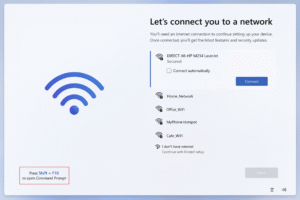
On many versions, the setup may stop at the following screen:
Let’s connect you to a network
Windows may not display an obvious option to continue without connecting to Wi-Fi or Ethernet.
Older Windows 11 Method: OOBE\BYPASSNRO
Older Windows 11 installation images often supported the following command:
OOBE\BYPASSNROThis command restarted the Windows Out-of-Box Experience and enabled an offline setup option.
However, Microsoft has removed the BYPASSNRO script from some newer Windows 11 builds.
When the script is unavailable, Windows displays:
The system cannot find the path specified.
If you receive that message, use the newer method below.
Current Method for Newer Windows 11 Builds
On recent Windows 11 builds, the local account setup screen may still be launched directly from Command Prompt.
Step 1: Open Command Prompt
At the Let’s connect you to a network screen, press:
Shift + F10
On some laptops, the function keys are assigned to brightness, volume, or other hardware controls. In that case, press:
Shift + Fn + F10
A Command Prompt window should open.
Step 2: Launch the Local Account Setup
Enter the following command:
explorer.exe ms-cxh:localonlyPress Enter.
Windows should open the local account creation screen.
Step 3: Create the Local Account
Enter the preferred username and password.
Complete the remaining setup screens as normal. The installation can proceed without connecting the Windows login to a Microsoft account.
If Shift + F10 Does Not Work
Some laptops require the Fn key before the function row will send the standard F10 command.
Try the following combinations:
- Shift + F10
- Shift + Fn + F10
- Fn + Shift + F10
You can also connect a standard USB keyboard and try Shift + F10 again.
Why OOBE\BYPASSNRO May No Longer Work
OOBE stands for Out-of-Box Experience. It is the setup process displayed after Windows is installed or when a new computer is turned on for the first time.
Microsoft periodically changes this process. Some newer Windows 11 installation images no longer include the BYPASSNRO command file.
That is why entering the older command may now produce a path-not-found error.
The command below uses a different Windows component to open the local account setup experience:
explorer.exe ms-cxh:localonlyMicrosoft may change or remove this method in future Windows builds, so the available process can depend on the installation media being used.
Windows 10 vs. Windows 11 Local Account Setup
| Feature | Windows 10 | Windows 11 |
|---|---|---|
| Local account supported | Yes | Yes |
| Internet commonly required during setup | Usually no | Often yes |
| Microsoft account strongly promoted | Yes | Yes, more aggressively |
| Special command normally required | No | Sometimes |
| Can switch to a Microsoft account later | Yes | Yes |
Can You Connect a Local Account to Microsoft Later?
Yes. A local account can be converted to a Microsoft account after Windows setup is complete.
Open:
Settings > Accounts > Your info
Select:
Sign in with a Microsoft account instead
You can also keep the Windows login local while signing in separately to Microsoft Store, OneDrive, Outlook, or other Microsoft applications.
Will Windows Update Still Work?
Yes. Windows Update works with both local accounts and Microsoft accounts.
Once the computer is connected to the Internet, Windows can download security updates, drivers, and feature updates normally.
Is It Legal to Use a Local Account?
Using a local account is generally a normal Windows configuration choice.
The process described in this guide uses components already included with Windows. It does not activate Windows illegally, alter licensing files, crack the operating system, or provide unauthorized access to another computer.
You must still use a properly licensed copy of Windows and comply with the applicable Microsoft licence terms.
When a Local Account May Be Useful
A local account can be practical when:
- Installing Windows before an Internet connection is available.
- Preparing a computer before delivering it to its owner.
- Troubleshooting Wi-Fi, Ethernet, or network drivers.
- Repairing a computer in a workshop environment.
- Setting up a temporary testing computer.
- Keeping the Windows login separate from cloud services.
The computer can still be connected to the Internet after installation, and a Microsoft account can be added later if needed.
Before Reinstalling Windows, Protect Your Files
Reinstalling Windows can overwrite existing files, partitions, recovery information, and file-system records.
If the computer contains important documents, photographs, videos, business files, or other irreplaceable information, confirm that the data is safely backed up before continuing.
If Windows does not start, the drive is failing, or the files are no longer accessible, avoid repeatedly reinstalling or resetting the operating system. Additional writing to the storage device may reduce the possibility of a successful recovery.
Need Help Recovering Data Before a Windows Reinstallation?
Capital Data Recovery provides professional data recovery services for hard drives, solid-state drives, USB storage devices, memory cards, laptops, desktop computers, and other digital storage media.
If important files are inaccessible, contact Capital Data Recovery before reinstalling Windows or resetting the computer.
Two is one, one is none. Important files should always exist in more than one verified location.
Contact Capital Data Recovery to discuss your data recovery situation.
Final Thoughts
Windows 10 usually allows users to create a local account through the standard offline setup options.
Windows 11 may require an additional step, particularly on newer builds where the older OOBE\BYPASSNRO command is no longer available.
At the time this guide was verified, the following command successfully opened the local account setup experience on a recent Windows 11 build:
explorer.exe ms-cxh:localonlyBecause Microsoft continues to change the Windows setup process, these steps may differ on future installation images.