
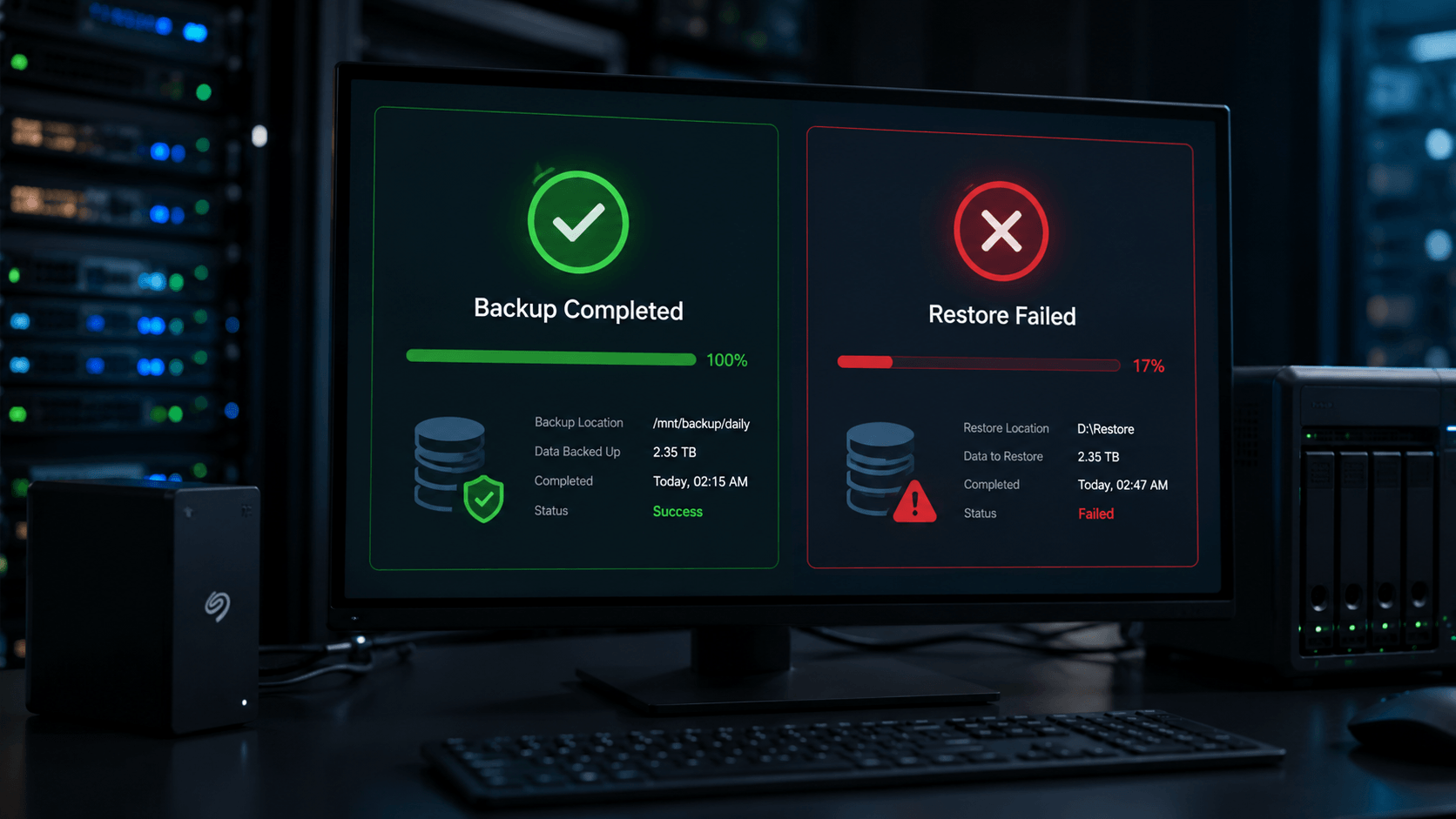
Backup Completed Successfully But Restore Failed? What to Check
Backup Completed Successfully… But Can You Actually Restore It?
A green checkmark is not a recovery plan.
A successful backup message feels reassuring. It tells you the job ran, the software finished, and your files should be protected.
But here is the problem: a backup that cannot be restored is not a backup. It is a false sense of security.
Many home users and businesses only discover this after something serious happens. A hard drive fails. A laptop will not boot. A ransomware attack locks files. A server crashes. Someone deletes an important folder. Then, during the restore attempt, the backup fails, the image will not mount, or the files are missing.
By that point, the problem is no longer theoretical.
The hidden gap: backup success vs. recovery success
Backup software usually tells you whether a job completed. That is useful, but it does not prove the data can be restored.
A real backup strategy has two parts:
1. The backup must complete.
2. The restore must work.
Most people check only the first part.
That is where problems begin. Backup jobs can appear successful while still having warnings, damaged files, missing restore points, VSS errors, corrupted snapshots, incomplete images, or compatibility problems after a Windows update or software change.
The only way to know if a backup works is to test the restore.
Recent Windows backup issues made this more important
Recent Windows security updates have created backup-related issues for some third-party backup applications, especially where older or vulnerable drivers are involved.
Microsoft confirmed that Windows updates released on or after April 14, 2026 introduced protections that can block vulnerable versions of the psmounterex.sys kernel driver. Some backup applications that rely on this driver may fail when mounting or managing backup images. In practical terms, this can affect browsing a backup image, mounting it as a virtual drive, or attempting certain restore-related operations.
Some users and IT administrators may see messages such as:
- VSS_E_BAD_STATE
- VSS timeout during snapshot creation
- Backup image failed to mount
- The backup has failed because Microsoft VSS has timed out
- Code Integrity Event ID 3077
- psmounterex.sys blocked
- Cannot browse backup image
- Cannot restore from backup image
- Backup completed but restore failed
This does not mean every backup product is broken. It also does not mean every backup image is lost. Different vendors and versions are affected differently.
But it does prove a larger point: backup systems must be checked after major updates, driver changes, software upgrades, and operating system changes.
If you have not tested your restore process recently, you do not really know if your backup is usable.
What users usually get wrong

The most common mistake is assuming that a green checkmark means the data is safe.
It does not.
A backup report may say “successful,” but the restore may still fail because of:
- VSS snapshot problems
- Corrupted backup files
- Bad sectors on the backup drive
- Interrupted backup jobs
- Failed image mounting
- Damaged external drives
- Network interruptions
- Unsupported backup software
- Outdated drivers
- Ransomware-encrypted backup files
- Cloud sync overwriting clean files
- Human error during restore
Another common mistake is relying on only one backup location. A single USB drive, one NAS, one cloud sync folder, or one external backup disk is not enough for important data.
If that one backup fails, gets corrupted, is encrypted by ransomware, or was never actually running, there may be no easy way back.
Check your backup before you need it
If you use backup software at home or in your business, check it now.
Do not wait for a failed drive, ransomware attack, or system crash.
Here is a simple recovery check:
- Open your backup software.
- Confirm the date of the last successful backup.
- Check for warnings, skipped files, VSS errors, or “completed with issues” messages.
- Confirm the backup drive or NAS is healthy.
- Try restoring a few test files to a separate folder.
- If you use image-based backup, confirm the image can be browsed or mounted.
- Make sure your backup software is fully updated.
- Do not delete older backups until newer backups are verified.
For business systems, this should not be optional. Accounting data, legal files, client records, project files, medical files, databases, and shared folders should have a tested restore process.
A backup that nobody tests is a risk.
What not to do if your backup fails
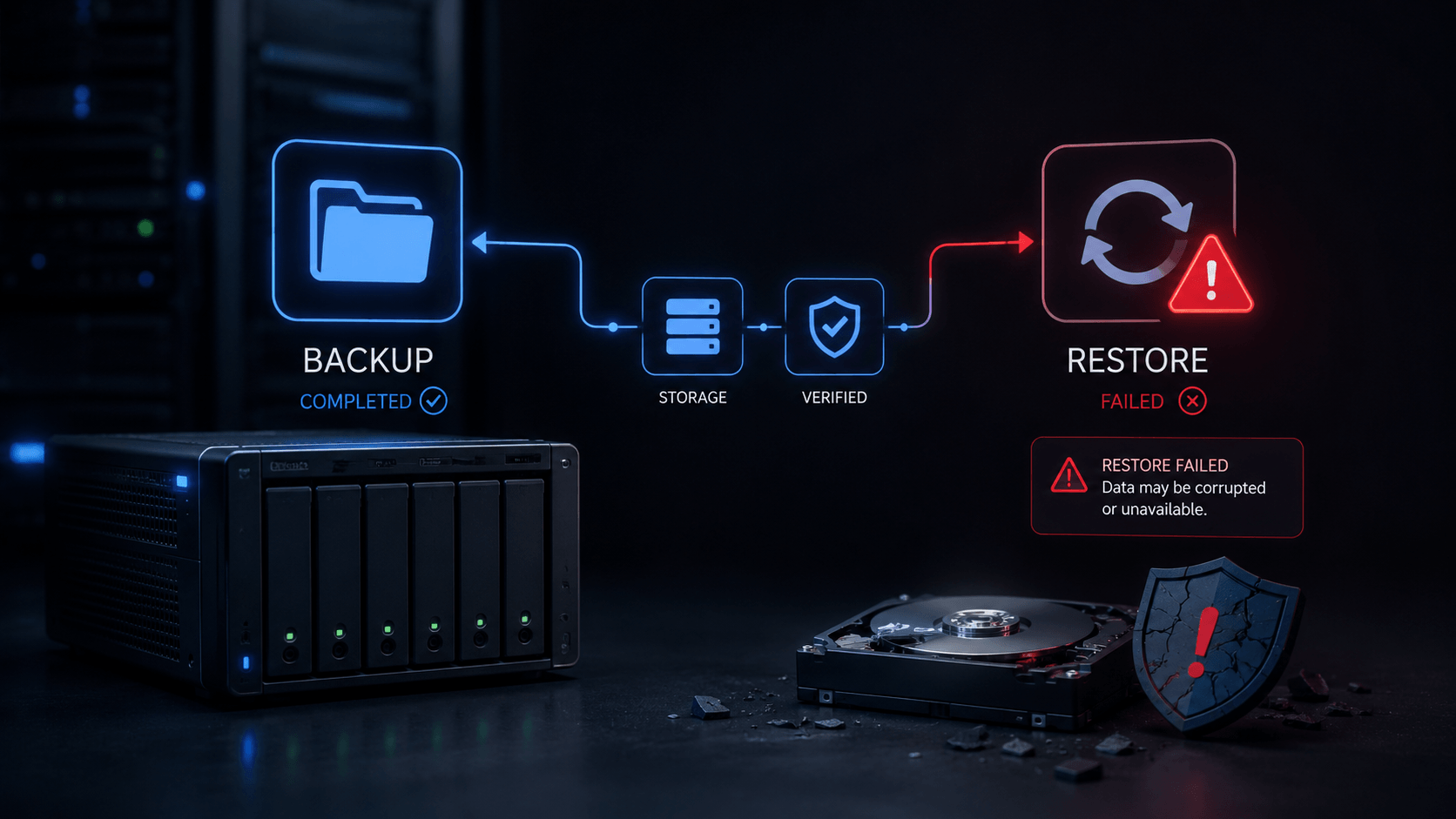
If your original storage device has already failed and your backup will not restore, stop before making the situation worse.
- Do not format the drive.
- Do not reinstall Windows over the original system.
- Do not run CHKDSK or repair tools on the failed storage device.
- Do not keep trying multiple recovery programs on the same drive.
- Do not copy new data onto the backup drive.
- Do not delete old backup sets until the data has been recovered or verified.
- Those steps can overwrite recoverable files, damage file-system structures, or reduce the chance of a successful recovery.
When to call Capital Data Recovery
If your backup will not restore, your external drive is not reading, your NAS is degraded, your backup image will not mount, or your computer has already failed, the safest step is to get the storage assessed before trying more repairs.
Capital Data Recovery helps recover data from failed hard drives, SSDs, external drives, RAID systems, NAS devices, servers, and backup-related failures.
The first action after data loss can make the difference between a recoverable case and permanent data loss.
Bottom line
A backup is only useful if it can be restored.
Check your backups before you need them. Test your restore process. Update your backup software. Watch for VSS errors, image-mount failures, and backup warnings.
A green checkmark is not enough.
Your real backup test is simple:
Can you get your files back?
If not, contact our experts for immediate help.