
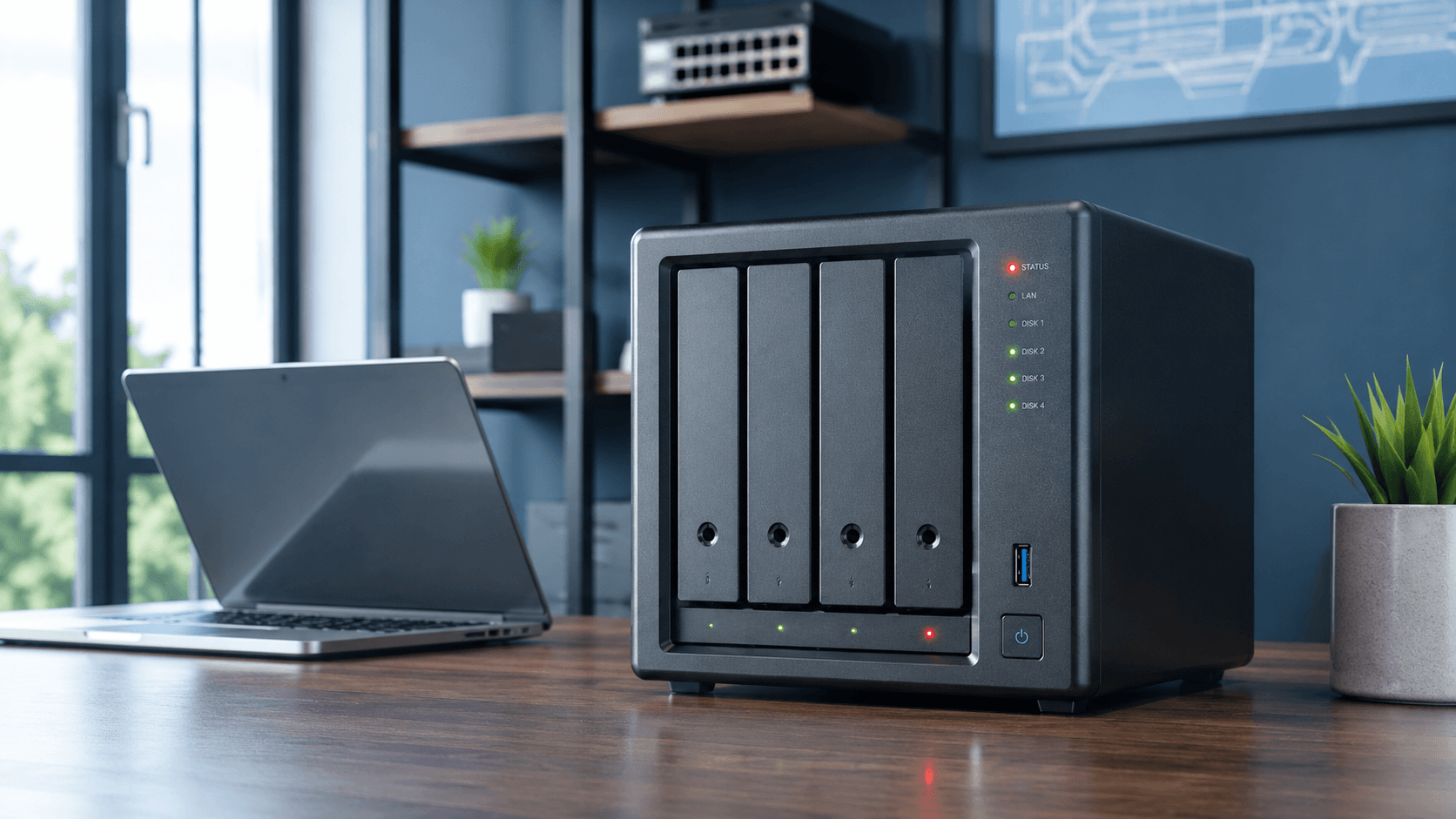
NAS Snapshots Are Not a Full Backup Plan
NAS Snapshots Are Not a Full Backup Plan
Snapshots can save time. Backups can save data.
NAS systems are popular because they make storage easier. Families use them for photos, videos, and personal files. Small businesses use them for shared folders, accounting data, security camera footage, design work, legal files, client records, and backups from multiple computers.
Many NAS systems also offer snapshots. Snapshots are useful. They can help roll files or folders back to an earlier point in time, especially after accidental deletion, unwanted changes, or certain ransomware incidents.
But snapshots are not the same as a full backup plan.
That distinction matters.
If the NAS fails, multiple drives become unstable, the storage pool goes inactive, or the wrong drive is replaced during a rebuild, snapshots may no longer be accessible. In those situations, snapshots alone may not be enough to protect the data.
What is a NAS snapshot?
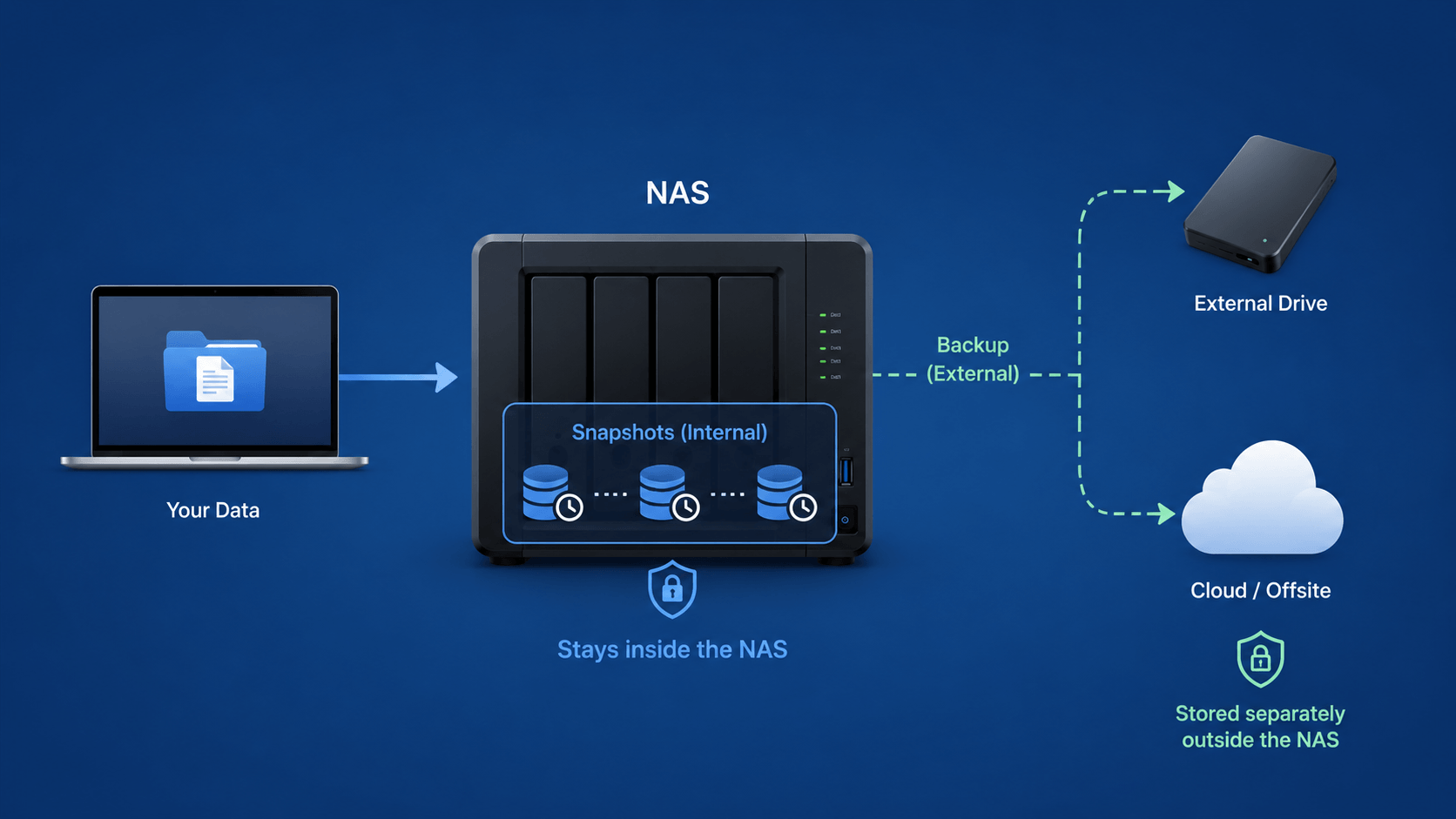
A snapshot is a point-in-time record of data on the storage system. Think of it as a quick way to go back to how files looked at an earlier moment.
That can be extremely useful. If a folder was changed, encrypted, or accidentally deleted, a snapshot may allow the user to recover an earlier version without restoring a full backup.
For many situations, snapshots are fast and convenient.
The problem is location and dependency.
Snapshots usually live inside the same NAS environment they are protecting. They depend on the NAS, the storage pool, the file system, the RAID configuration, the drives, and the system metadata being healthy enough to access them.
If the NAS storage pool fails, the RAID becomes damaged, or the system cannot mount the volume, those snapshots may not be reachable.
RAID is not backup either
This is another common misunderstanding.
RAID can help keep a NAS running after certain drive failures. For example, RAID 1 mirrors data, RAID 5 can usually tolerate one failed drive, and RAID 6 can usually tolerate two failed drives.
That is redundancy. It is not backup.
RAID does not protect you from accidental deletion, ransomware, file corruption, theft, fire, flood, controller failure, wrong rebuild steps, or a damaged file system.
If the NAS is the only place your data exists, then the NAS is not your backup. It is your primary storage.
And if that primary storage fails, the recovery situation becomes much more serious.
Common NAS brands and file systems involved in recovery cases
NAS recovery is not limited to one brand or one file system. The same basic risks can apply across many systems, including Synology, QNAP, Western Digital My Cloud, WD My Book Live, Buffalo TeraStation, Buffalo LinkStation, ASUSTOR, TerraMaster, Netgear ReadyNAS, Drobo, Thecus, UGREEN NASync, TrueNAS, FreeNAS, Unraid, and custom Linux or Windows-based RAID servers.
Different systems may use different storage layers and file systems. Common examples include:
- Btrfs
- ext4
- ZFS and OpenZFS
- XFS
- NTFS
- exFAT
- HFS+ or APFS on attached external drives
- Linux software RAID
- LVM volumes
- Synology Hybrid RAID
- ZFS pools
- proprietary RAID metadata
These names matter because recovery is not only about the failed drive. A NAS recovery case may involve the physical disks, RAID layout, file system, volume metadata, snapshots, encryption settings, storage pool structure, and the order in which the drives failed.
That is why moving drives into another NAS, initializing a volume, or starting a rebuild without knowing the original configuration can be risky.
The NAS brand is only part of the story. The file system and RAID structure matter too.
The dangerous moment: “replace drive and rebuild”
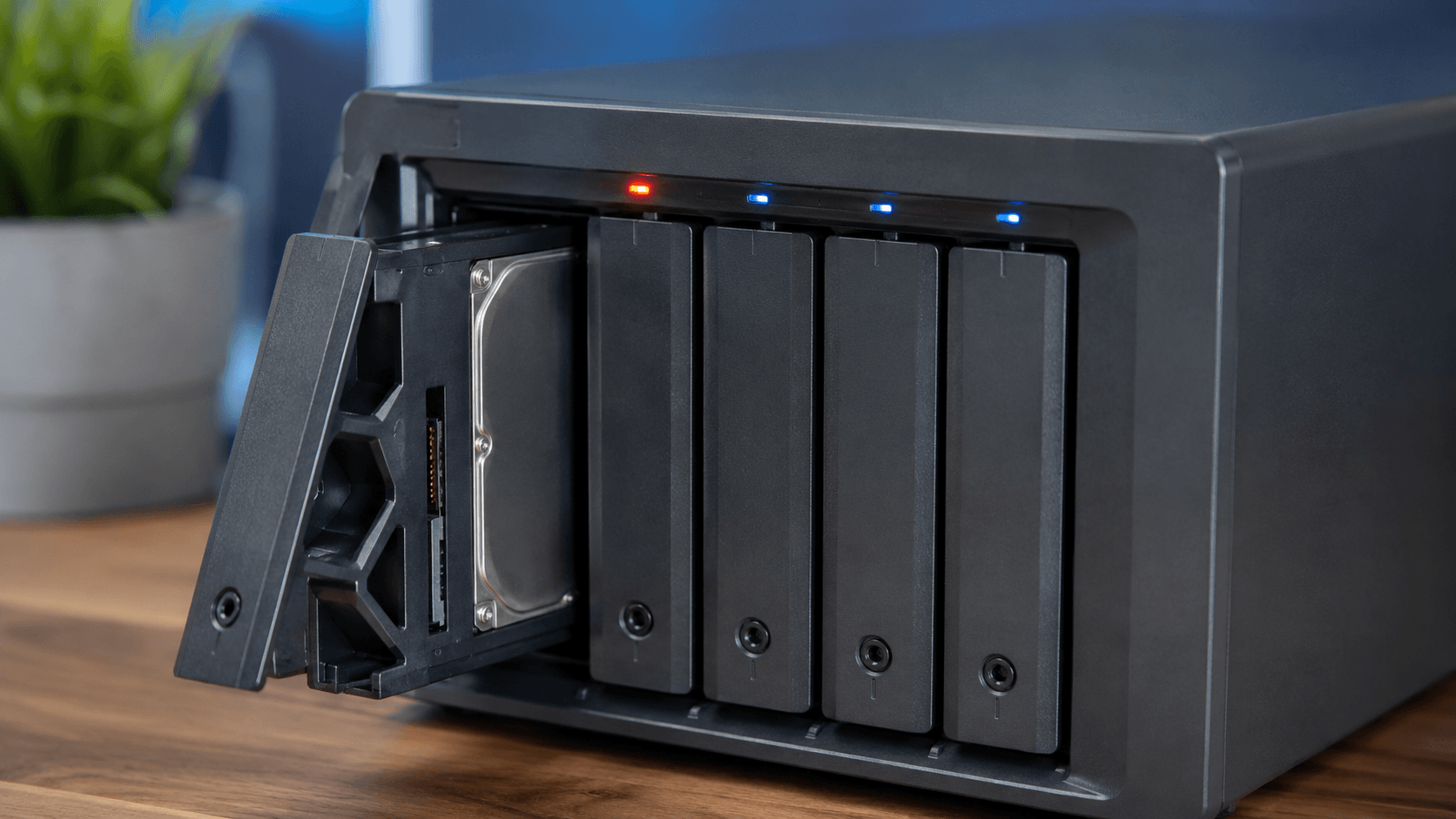
When a NAS reports a failed drive, many users immediately replace the drive and start a rebuild.
Sometimes that works.
But if the data is important and there is no verified backup, a rebuild should not be treated as a harmless maintenance step.
A rebuild forces the remaining drives to work hard while reconstructing data onto the replacement drive. If another drive is weak, has bad sectors, drops offline, or was already unstable, the rebuild can fail. A failed rebuild can make the recovery more complex.
There is also the risk of human error. Users may remove the wrong drive, mix up drive order, start a new storage pool, initialize a disk, or follow prompts without fully understanding what the NAS is about to do.
That can turn a recoverable NAS case into a much harder recovery.
Warning signs to stop before rebuilding
Stop and get advice before continuing if you see any of these signs:
- NAS volume crashed
- Storage pool inactive
- RAID degraded
- RAID rebuild failed
- More than one drive showing errors
- NAS asking to initialize a drive
- NAS asking to create a new storage pool
- Synology volume crashed
- QNAP RAID degraded
- WD My Cloud not accessible
- Buffalo TeraStation RAID error
- TerraMaster volume damaged
- ASUSTOR storage manager warning
- TrueNAS ZFS pool degraded
- Unraid disk disabled
- Drive order is uncertain
- A drive is clicking, very slow, or disappearing
- SMART errors or bad sectors are reported
- A previous rebuild failed
- The NAS contains the only copy of the data
These are not normal “just click next” situations.
If the NAS contains important data and there is no separate verified backup, treat it as a data recovery case before making changes.
What a real NAS backup plan should include
A safer setup separates the data from the NAS itself.
A better NAS protection plan may include:
- Snapshots for quick rollback
- RAID for drive redundancy
- A separate backup copy
- An offsite or cloud backup
- Version history
- Restricted access to backup locations
- Regular restore testing
Snapshots are helpful. RAID is helpful. But neither one should be the only protection.
A stronger question is not, “Do I have snapshots?”
The better question is:
Can I recover my data if the NAS itself fails?
If the answer is no, then the backup plan is incomplete.
Why one NAS location is still a risk
- If the NAS is your only copy, you have one point of failure.
- If the NAS has RAID but no separate backup, you still have one location.
- If the NAS has snapshots but no separate backup, you still depend on the same storage system.
For important data, keep at least one clean copy somewhere separate from the NAS. That may be an external backup drive that is disconnected when not in use, another NAS in a different location, or a cloud backup with version history.
The exact setup depends on the data, budget, and risk level. But the principle is the same: do not leave all recovery options inside the same box.
What not to do after a NAS failure
If your NAS or RAID system has already failed, avoid actions that can make things worse.
- Do not initialize the disks.
- Do not create a new storage pool.
- Do not format the volume.
- Do not start another rebuild just to see what happens.
- Do not remove drives without labelling their original bay positions.
- Do not run repair tools without knowing the condition of every drive.
- Do not move the drives into another NAS unless you understand the risk.
Before touching the drives, take photos of the NAS bay order, error messages, drive labels, and system status screen. Keep the drives in their original order. Write down what happened and when.
That information can be important during professional RAID/NAS recovery.
Bottom line
NAS snapshots are useful, but they are not a complete backup plan.
RAID can help with drive redundancy, but RAID is not backup.
If the NAS itself fails, your snapshots may not be reachable. If the array is damaged, a rebuild may make things worse. If the NAS is your only copy, you are exposed.
Use snapshots. Use RAID. But keep a separate backup.
If your NAS volume is crashed, your RAID rebuild failed, or your storage pool is inactive, contact Capital Data Recovery before taking the next step.